 Your Name
af9d0752db
working on README.md
Your Name
af9d0752db
working on README.md
|
1 vuosi sitten | |
|---|---|---|
| images | 1 vuosi sitten | |
| web | 1 vuosi sitten | |
| .gitignore | 1 vuosi sitten | |
| .gitmodules | 1 vuosi sitten | |
| README.md | 1 vuosi sitten |
README.md
kyleguy
There are a few things that need to be setup to have a website. One needs a domain. This is just a name that people use to identify something. Google owns many domains, for example: www.google.com, google.com, gmail.com. These domains have various meanings to different people, but to you google.com probably means a website where one can find other websites, products, services, etc on the Internet. We need a domain. We need a place for our website to exist, we are going to host our website at pebbleguy.com. We also need a way to edit our site. These three things are really all that we need, each might abstract some difficulties, but nothing is too complex. For example to have a domain we need to manage the Domain Name System, it is easy albeit esoteric.
prerequisites - a thing that is the same as something that is required
This guide was primarily written for a single person and looks complex with a a bunch of tools and screenshots and clicks and stuff, but the overall process can be accomplished under a variety of environments. A couple tools that have binaries pre-compiled for Windows are needed because by default Windows does not provide any aid. Thankfully there are many Windows users that have stepped in and are helpping provide the necessary solutions. To give a brief overview of what is described in this guide here is a Debian version of this guide:
: "you need to add a DNS record for the domain kyleguy.rome7.com on your domain registrar"
# --
# Debian version of static site using Hugo
sudo apt install hugo;
# setup NginX configs for our webserver
git clone https://git.pebbleguy.com/Dan/pebbleguy.com
cd pebbleguy.com/scripts
./certbot-wrapper.sh -h kyleguy.rome7.com -u kyle
# Create the site
cd /mnt/external/projects
mkdir kyleguy && cd kyleguy && git init && touch README.md
hugo new site web
cd web
git submodule add https://github.com/theNewDynamic/gohugo-theme-ananke.git themes/ananke
echo "theme = 'ananke'" >> hugo.toml
sudo ln -s /mnt/external/projects/kyleguy/web/public/ /mnt/external/websites/kyleguy.rome7.com
# Commit the website and push the repository to git.pebbleguy.com
git add --all && git commit -m'added a static site with hugo'
git remote add origin http://git.pebbleguy.com/kyle/kyleguy.git
git push -u origin master
What we can see is that the user made sure that they had a DNS record for kyleguy.rome7.com then installed hugo. They pulled a copy of the pebbleguy.com repository so that they could execute the certbot-wrapper.sh to setup a webserver with a certificate signed by a certificate authority. They then setup a webroot and added a theme to their static site. Lastly they committed their site contained in a new git repository to git.pebbleguy.com. This is basically what we are going to do in this guide but we need some extra things. We are going to assume that the Windows user already has git setup and they know how to use it. They are going to need to connect to a remote server because Windows lacks several basic API calls needed for a reliable server. Idk is reliable is the right word. They lack the epoll API and do not support select or poll and would rely on a third party tools. That is what I actually mean by 'reliable'. I was saying they need to connect to a remote server which means one needs to be careful and run some commands on the Windows host and some using SecureShell on a remote host. In addition files need to be synced between the local and remote side which means we need a few more tools and configs. The installation of Hugo is the tiniest bit more complex, due to the differences between Windows Powershell the end-of-the-road 'powershell' that is installed on Windows, and Powershell the actively developed but not installed on any version of Windows. The guide tries to be a little on the verbose side, both becuase I lack clarity, also because this is just a guide hopefully details are useful, but when you fall off a cliff the guide can't catch you, it's just going to watch your inevitible tumble down the mountainside.
This is supposed to be pre-requisites. If you follow this first some you may be save yourself from difficulties later.
Windows does not have ssh-keygen, install it or a replacement:
Install
a place called home, or maybe webroot
Base directory. Home. Root. C Drive. What other names are there? Maybe A: or /. The place that is the container for the stuff. Or the directory that holds all the files. Folders if you like that better. The webroot is a name that does not mean anything except for when you care about it. If it were your job to organize a party you'd probably pick a place and tell everyone to meet there. For this tiny amount of time that location is special. It is ground zero for where the party will happen. People who aren't at the specified location aren't at the party. Your party isn't the only party. In fact it might not even be the only party at the location that you picked. The point is that you picked a location made it special because you said it was. This is the same for a webroot. You are just picking some arbitrary location on a disk and you are going to tell everyone if they want to party at your website they need to go there. When you follow the instructions for the site setup you will need to tell NginX about this location. I am going to pick the location and we are going to put some files there to serve up at the party. How long can I draw out this metaphore? Forever.
Our webroot is going to be /mnt/external/websites/kyleguy.rome7.com. We are going to store files in an adjacent directory, further explained when we do the site setup. This directory that actually contains all the .html files and cool pictures of cats is going to be /mnt/external/projects/kyleguy/web/public. And /mnt/external/projects/kyleguy that is this repository. There is a copy of this README.md in /mnt/external/projects/kyleguy/README.md. Whoa trippy. Lets put this README.md there.
cd /mnt/external/projects
git clone https://git.pebbleguy.com/kyle/kyleguy
Public does not exist yet. Let's create it. We are hosting a static site generated by a tool called hugo. We need hugo. One would be better off developing their site on their computer. So let's use Windows because I loath the OS and like maximum pain.
First up is to install Hugo using the windows package manager, winget.
Open a terminal
Download and install hugo
winget install Hugo.Hugo.Extended
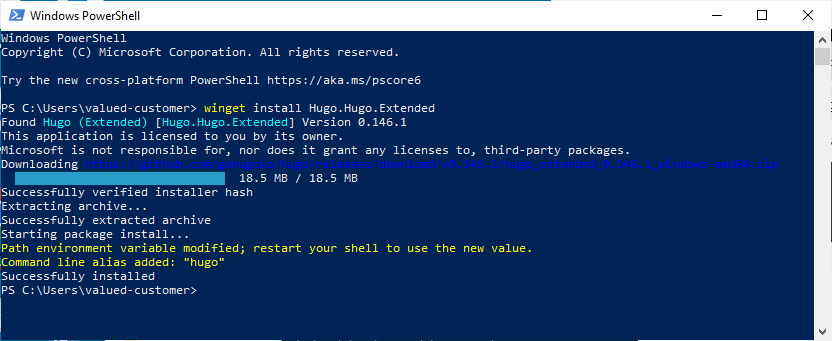
uh-oh we want to be in a repository but we do we have one? There are instructions to setup the repository in this guide, go there when you get to a stopping point there come back here.
Wow cool, we have a copy of the kyleguy repository on our windows computer. We can initilize a hugo static site.
Windows is really cool they have a feature where they print red text until you close and reopen the terminal:
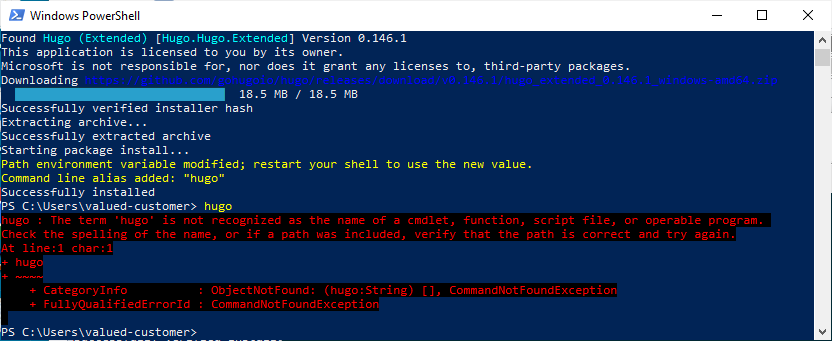
Actually this is a good break, because we cannot use Windows Powershell we need Powershell. Yeh. I cannot fix that. Pretty wild. There is a difference. We will jump back here, but we need to install Powershell first.
Install Powershell
Open up that terminal, then use winget to install powershell.
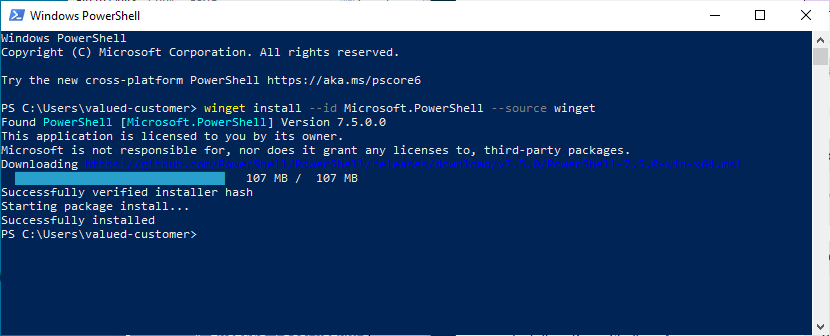
back to: uh-oh we want to be in a repository but we do we have one?
We launch powershell a little differently:
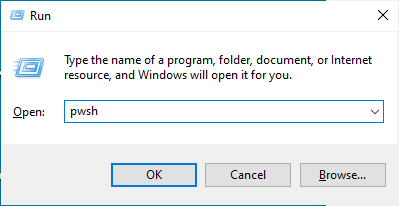
Initilize a static page using hugo Let us initilize the files needed for our website:
cd Desktop/kyleguy
hugo new site web
cd web
git submodule add https://github.com/theNewDynamic/gohugo-theme-ananke.git themes/ananke
echo "theme = 'ananke'" >> hugo.toml
hugo server
If that worked it will look something like this:
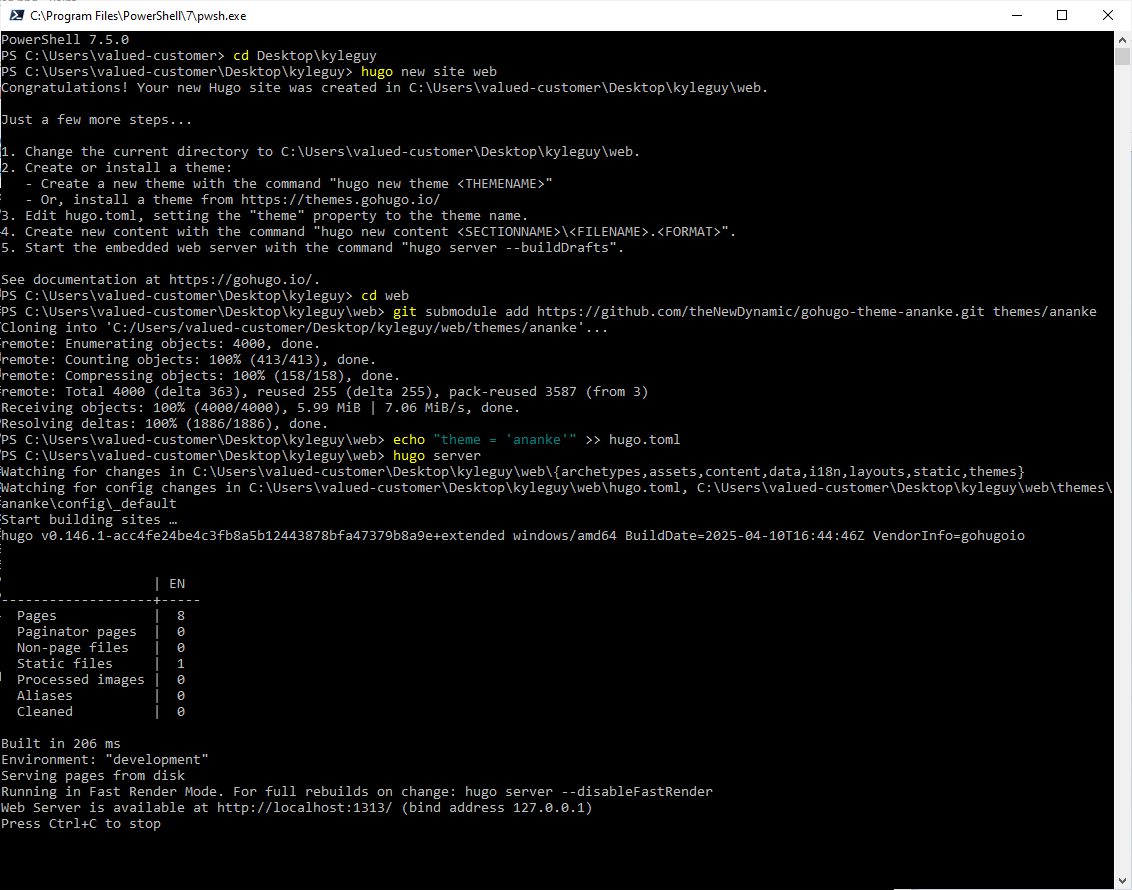
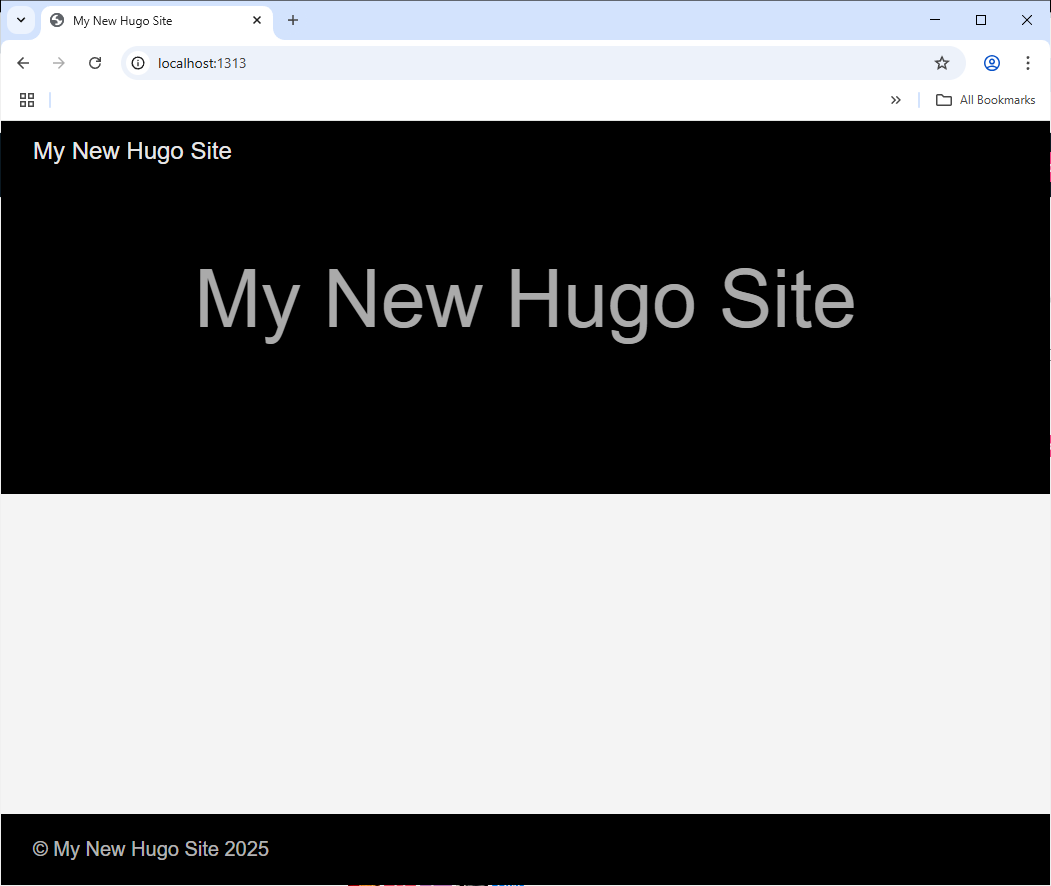
In addition there will be a webserver on our Windows computer. I think hugo will serve the site http://localhost:1313/. This feature is nice and allows us to see our website while we work on it:
some final steps
We should probably add our site to the repository. And that website is pretty basic so one should follow the hugo tutorials to upgrade the page. All the files are in Desktop/kyleguy/web if you've been following closely. Use a terminal for git commands. Maybe edit the .gitignore file to include some folders using our deep knowledge of hugo:
# Hugo
/web/public/
/web/resources/_gen/
/web/assets/jsconfig.json
/web/hugo_stats.json
/web/hugo.exe
/web/hugo.darwin
/web/hugo.linux
/web/.hugo_build.lock
Then add our site and commit:
git add *
git commit -m'added a hugo site'
git push
site setup
You are going to need a domain, either buy one or be a person whom already has a domain. We are going to host our site on pebbleguy.com using the NginX ("engine x") web server. We will create a site configuration file with SSL using a tool, certbot-wapper.sh. This script is part of the pebbleguy repository. Login to your account on pebbleguy.com using Secure Shell (SSH) or ask Kyle, Chris, Daniel, or Emma for help. If you are one of those people, hello! Download the pebbleguy.com repository so you have access to the script and run certbot-wrapper.sh to have it create the NginX config file for your site:
git clone https://git.pebbleguy.com/Dan/pebbleguy.com
cd pebbleguy.com/scripts
./certbot-wrapper.sh -h kyleguy.rome7.com -u kyle
This should create a configuration file either on the external disk or primary disk depending on if pebbleguy.com is in Read-Only or Read-Write mode. More info on that here. The locations are either /mnt/external/live-server-configs/for-nginx/sites-enabled/kyleguy-web.conf or /etc/nginx/sites-enabled/kyleguy-web.conf.
Keep those file locations in mind for later.
When I ran certbot-wrapper the system was in Read-Write mode so my config was created /etc/nginx/sites-enabled/kyleguy-web.conf:
server {
        server_name kyleguy.rome7.com;
        # listen 80;
        listen 443 ssl;
        index index.php;
        root /mnt/external/websites/kyleguy.rome7.com/;

        location / {
            # first attempt to serve request as file, then as directory, then fall back to displaying a 404.
            try_files $uri $uri/ =404;
        }

        # reverse proxy for initial certbot http challenge (we have certbot listen on 888)
        # include /etc/nginx/includes/certbot-web-plugin.conf;

        # include php by default
        include /etc/nginx/includes/php-location-directives.conf;

        ssl_certificate /mnt/external/live-server-configs/letsencrypt/live/kyleguy.rome7.com/fullchain.pem;
        ssl_certificate_key /mnt/external/live-server-configs/letsencrypt/live/kyleguy.rome7.com/privkey.pem;
        # include /etc/nginx/snippets/ssl-params.conf;
}
Now we need to create a directory to store our site. You'll notice in the generated config file it has some defaults choosen for us, root /mnt/external/websites/kyleguy.rome7.com/;. It hasn't actually done any of the work it is meant only to bootstrap a config file and retrieve SSL certificates for https. If you use your SSH connected terminal to navigate to the external drive you will see a projects directory:
cd /mnt/external
ls
will show:
username@pebbleguy:/mnt/external $ cd /mnt/external
username@pebbleguy:/mnt/external $ ls
gogs  live-server-configs  lost+found  projects  websites
You will put your site repository into the projects directory. You will also notice a websites directory. You could put your website there, but you'd get caught in an organizational nightmare. Instead we will put a sort of shortcut into the websites directory that points to the actual website directory that is contained in our repository. This way we don't ever need to come back to this terminal on pebbleguy.com to mess around with our files ever again, probably.
username@pebbleguy:/mnt/external $ cd /mnt/external
username@pebbleguy:/mnt/external $ ls
gogs  live-server-configs  lost+found  projects  websites
username@pebbleguy:/mnt/external $ sudo ln -s /mnt/external/projects/kyleguy/web/public/ /mnt/external/websites/kyleguy.rome7.com
username@pebbleguy:/mnt/external $ ls /mnt/external/websites
emma-kac  gogs-webhooks  KingsAndChaos  kyleguy.rome7.com  shootGame  www.pebbleguy.com
repository setup
Configure the your domain registrar's DNS
This assumes you are using the DNS provided by your domain registrar. Some common registrars are Cloudflare, SquareSpace, Wix, GoDaddy, Gandi, Namecheap, and others. FYI, I listed some bad and some good ones, not a review just blasting.
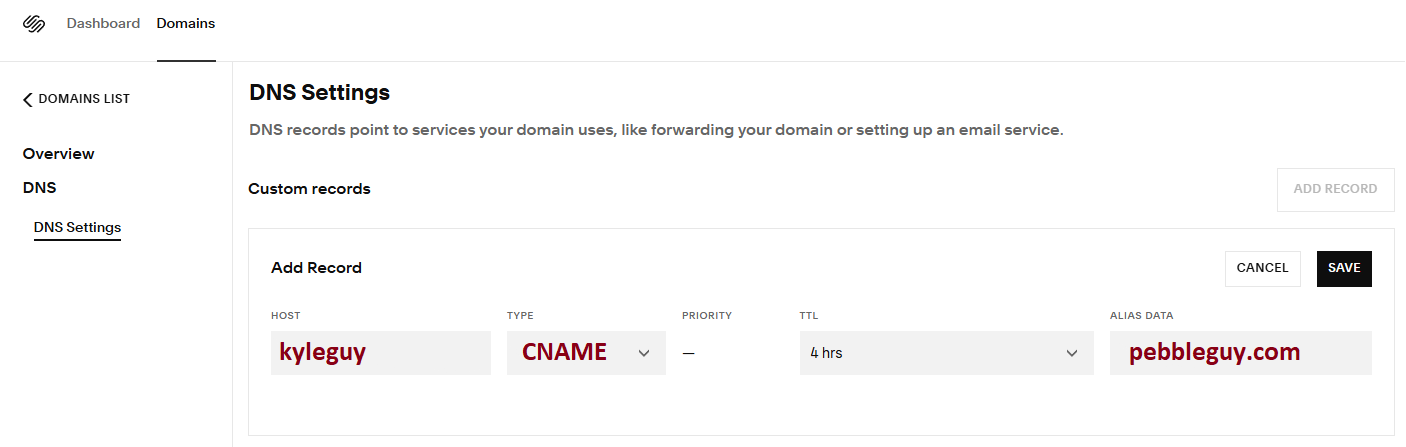
Not necessarily the first thing that needs to be accomplished, but if it is done early time can be saved while the DNS provider tries to spread the word out to the internet about your domain. Add a record for the domain name. In this example we add kyleguy.rome7.com, you only add a record for the subdomain part, kyleguy. You are the decision maker for what domain points to this site. My site will be hosted on pebbleguy.com so I use a CNAME so that when people go to my site they will know where my site is located. I did not want a site at rome7.com so I am creating a subdomain:
Create a git repository
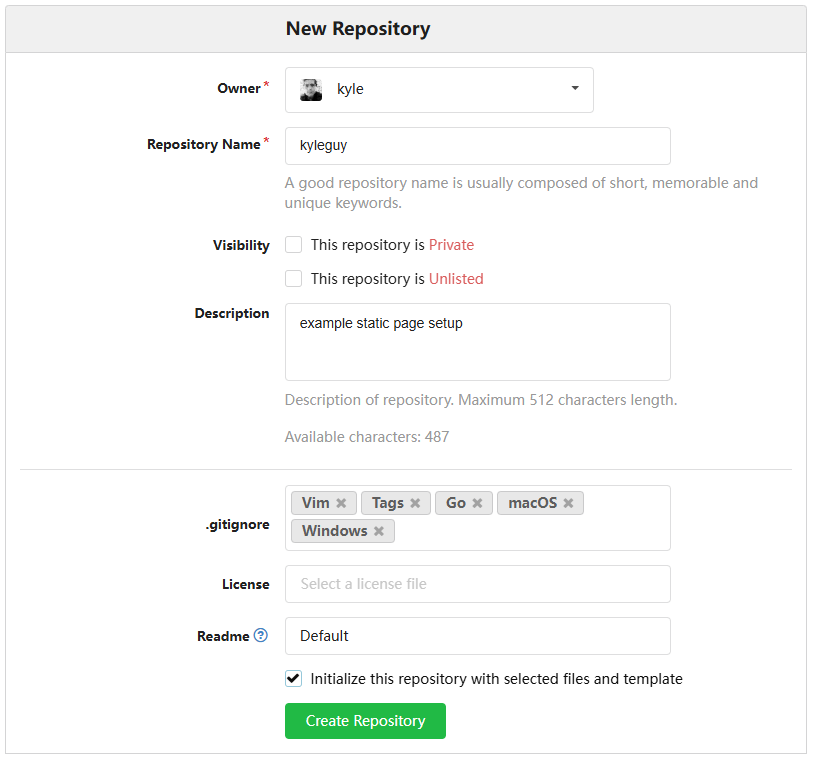
Login to your account on git.pebbleguy.com. Click the add repository button:

Then fill out the form. We will use some predefined options to template our gitignore file and have Gogs initialize the repository for us.
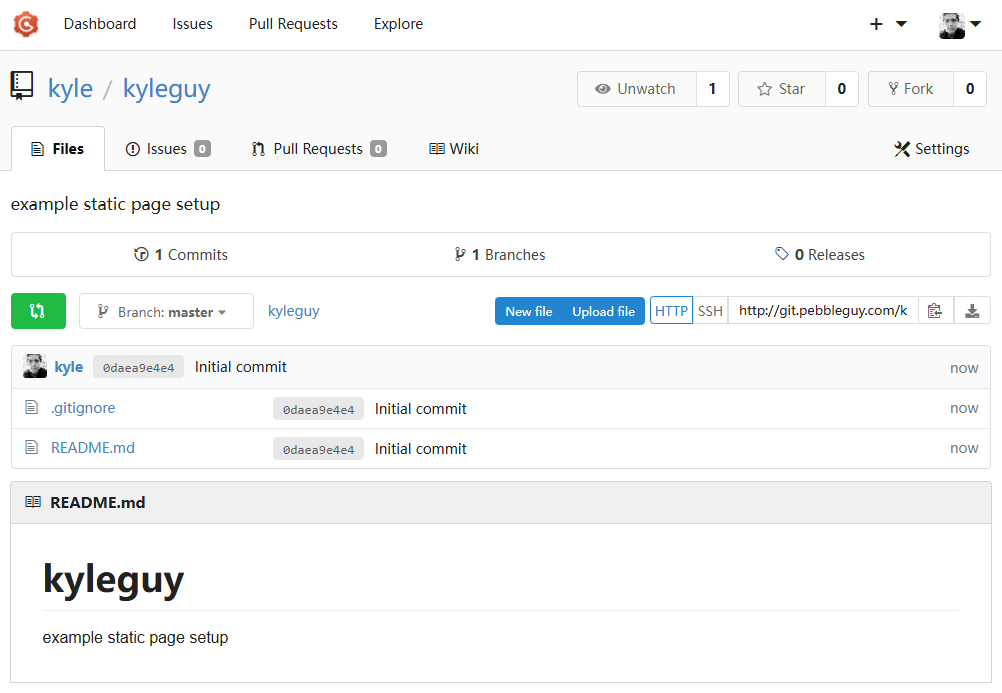
This is what the mostly empty repository looks like if you were successful:
Get a copy of the repository on your computer
Open powershell or cmd:
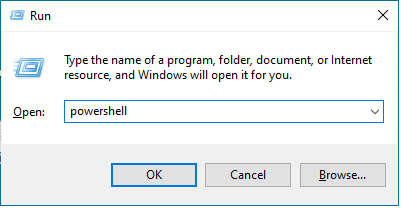
You will clone the repository to your desktop, type these commands into the powershell terminal. The output should match closely with the example. You will want to replace the clone url with your own repository https://git.pebbleguy.com/{{your_gogs_account_name}}/{{repository_name}}
cd desktop
git clone https://git.pebbleguy.com/kyle/kyleguy
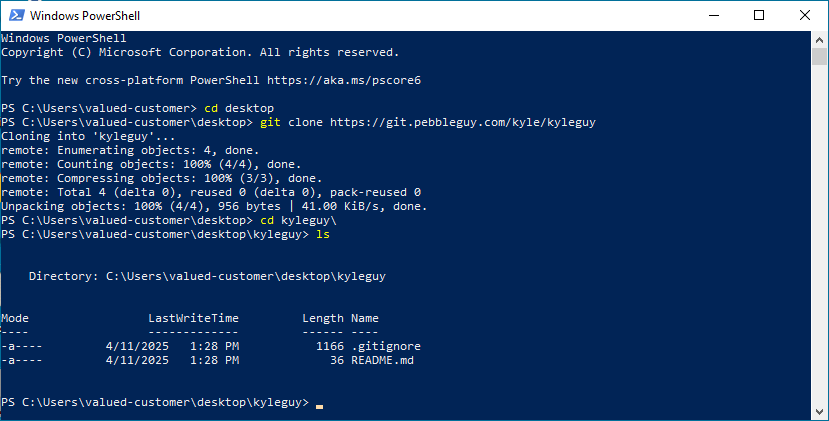
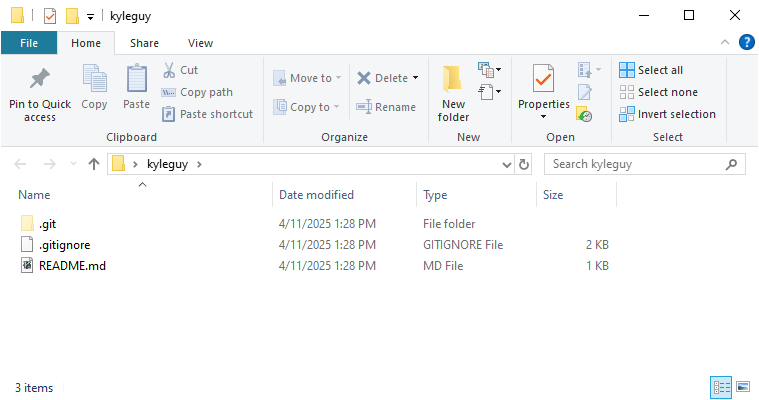
With the repository cloned to your desktop successfully, you should be able to use the Windows file explorer to view the files: